
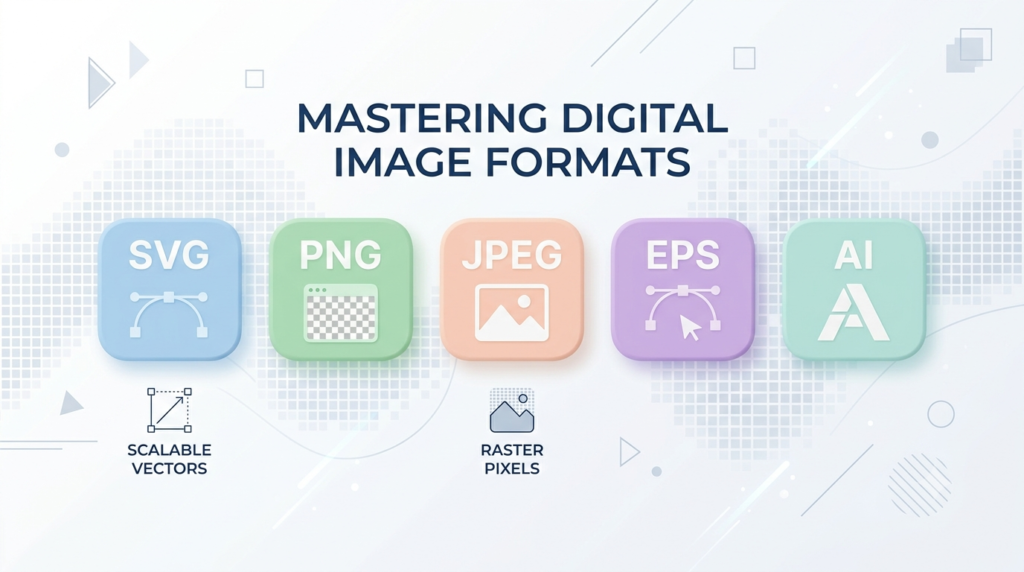
If you’ve ever downloaded a logo pack and found five different file types inside — SVG, PNG, JPEG, EPS, and AI — you’ve probably asked yourself the same question everyone does: “Which one do I actually need?”
You’re not alone. This mix-up trips up beginners, small business owners, and even some designers who never had to think about it until a client asked for “the vector file, not the JPEG.”
The good news is that once you understand what each format is built for, picking the right one becomes second nature. In this guide, we’ll break down SVG, PNG, JPEG, EPS, and AI in plain English — no technical jargon, no confusing design-school theory. Just practical differences, real use cases, and a simple way to decide which file to use for your website, social media, printing, or branding needs.
By the end, you’ll know exactly which format to grab the next time you’re downloading a logo, saving an image, or sending files to a printer.
What’s the Real Difference Between These File Formats?
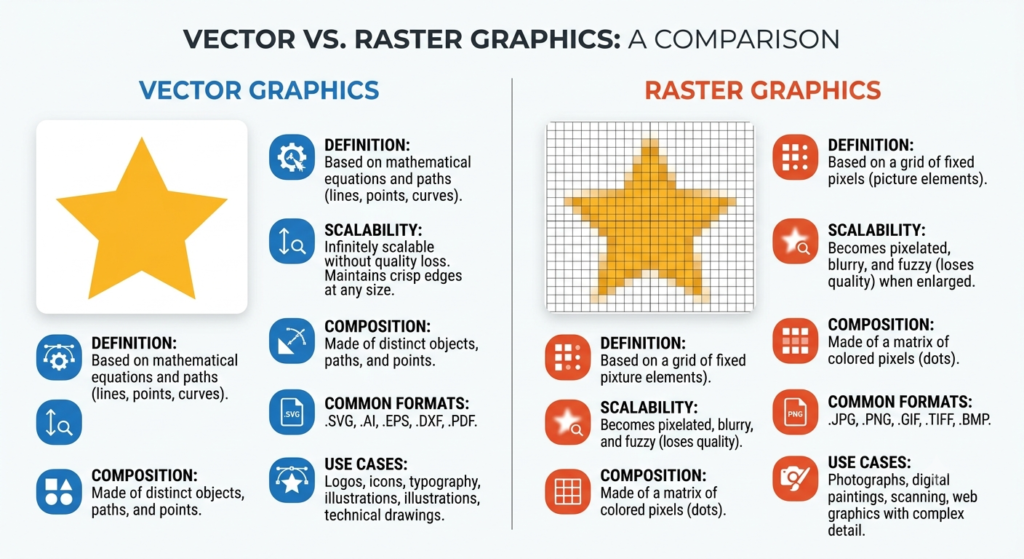
Before comparing them one by one, it helps to understand the two big categories these formats fall into.
Vector vs Raster: The Core Concept
- Raster images (PNG, JPEG) are made of tiny colored squares called pixels. Zoom in too far, and they get blurry or “pixelated.”
- Vector images (SVG, EPS, AI) are made of mathematical paths and shapes. You can scale them to any size — a business card or a billboard — without losing quality.
This one distinction explains almost every difference you’ll read about below.
SVG: The Web’s Favorite Vector Format
SVG stands for Scalable Vector Graphics, and it’s a vector-based format designed specifically for the web. If you want ready-made examples, you can browse our SVG logo collection to see the format in action.
Why SVG Is So Popular
- Infinitely scalable without quality loss
- Small file size, which means faster website loading
- Editable with code (great for developers)
- Supports transparent backgrounds naturally
- Works perfectly for logos, icons, and responsive design
When to Use SVG
- Website logos and navigation icons
- Favicons
- Illustrations that need to resize across devices
- Any project where file size and speed matter
SVG has become the standard recommendation for web-based logo usage because it looks sharp on every screen size, from a small mobile icon to a large desktop banner.
PNG: The Go-To for Transparency
PNG (Portable Network Graphics) is a raster format best known for one thing: transparent backgrounds.
Key PNG Features
- Supports transparency (unlike JPEG)
- Good image quality with lossless compression
- Larger file size than JPEG
- Fixed resolution — doesn’t scale well
Best Use Cases for PNG
- Logos placed over colored or photo backgrounds
- Website graphics that need transparency
- Social media profile pictures
- Screenshots and simple graphics
If someone asks for “a logo with no background,” they almost always mean PNG. You can grab ready-to-use files from our free PNG logo downloads page, and if you want to understand how image weight affects your site speed, Google’s Web Fundamentals guide on image optimization is a solid read.
JPEG: The Standard for Photos
JPEG (or JPG) is the most widely used image format on the internet, mainly because of its small file size and photo-friendly compression.
Key JPEG Features
- Smaller file size than PNG
- No transparency support
- Slight quality loss due to compression
- Great for photographs, not ideal for logos or text
Best Use Cases for JPEG
- Photography
- Blog featured images
- Product photos for e-commerce
- Background images where transparency isn’t needed
Using JPEG for a logo is one of the most common beginner mistakes — it adds an unwanted white or colored box around the design instead of a clean transparent edge.
EPS: The Print Industry’s Classic
EPS (Encapsulated PostScript) is a vector format that has been the print industry standard for decades.
Why EPS Still Matters
- Fully scalable, just like SVG
- Compatible with almost all design and printing software
- Preferred by printers for large-format printing (banners, signage, packaging)
- Can contain both vector and raster data
Best Use Cases for EPS
- Sending logo files to print shops
- Large-format printing like banners or vehicle wraps
- Working across older design software
- Archiving a universally compatible vector master file
If a printing company asks for your “vector file,” EPS is often exactly what they mean
AI: The Native Design File
AI stands for Adobe Illustrator, and this format is the native file type for that software. For a deeper technical breakdown, Adobe’s own guide on file formats is worth a look.
Why Designers Use AI Files
- Fully editable — every shape, layer, and color is adjustable
- Highest level of design control
- Ideal for making future edits to a logo
- Requires Adobe Illustrator (or compatible software) to open
Best Use Cases for AI Files
- Original source files for logo designers
- Making future edits or variations of a design
- Professional branding projects
- Handing off a project to another designer
Think of the AI file as the “master copy” — everything else (SVG, PNG, JPEG, EPS) is usually exported from it.
| Format | Type | Transparency | Scalable | Best For | Editable |
| SVG | Vector | Yes | Yes | Websites, icons, responsive logos | Yes (code-based) |
| PNG | Raster | Yes | No | Transparent web graphics | No |
| JPEG | Raster | No | No | Photos, blog images | No |
| EPS | Vector | Limited | Yes | Print, large-format graphics | Yes (design software) |
| AI | Vector | Yes | Yes | Original/source design files | Yes (Illustrator) |
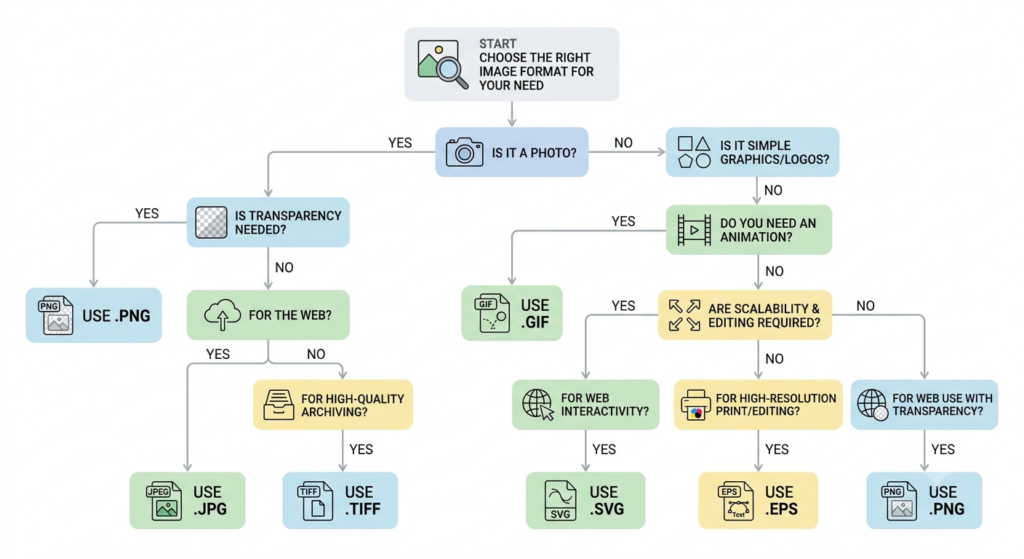
How to Choose the Right Format (Simple Decision Guide)
Still unsure which file to pick? Use this quick checklist, or read our full guide on how to download the right logo file for your website for a step-by-step walkthrough.
Choose SVG if:
- You’re uploading a logo to a website
- You need small file sizes for fast loading
- Your design needs to look sharp on any screen
Choose PNG if:
- You need a transparent background
- You’re placing a logo over a photo or colored banner
- You’re using it for social media
Choose JPEG if:
- You’re working with photographs
- File size matters more than transparency
- You don’t need to edit the image later
Choose EPS if:
- You’re sending a file to a printer
- You need a universally compatible vector format
- You’re working on packaging, signage, or merchandise
Choose AI if:
- You (or your designer) need to edit the logo later
- You want full control over every design element
- You’re building or maintaining a brand identity system
Common Mistakes People Make With File Formats
- Using JPEG for a logo, resulting in an ugly white box background
- Sending a low-resolution PNG to a printer instead of a vector file
- Losing the original AI file and being unable to edit the logo later
- Assuming SVG and EPS are interchangeable (they’re similar, but not always compatible with the same software)
Avoiding these mistakes saves time, money, and a lot of frustration — especially when you’re working with a designer or printer under a deadline.
Frequently Asked Questions (FAQs)
Is SVG better than PNG?
SVG is better for logos and icons because it scales without losing quality and has a smaller file size. PNG is better when you need transparency in a raster-based image, like a photo overlay.
Can I convert a PNG to SVG?
Technically yes, using vector-tracing tools, but the result often isn’t as clean as an SVG created directly from the original vector design.
Why does my logo look blurry on my website?
This usually happens when a low-resolution PNG or JPEG is used instead of a vector format like SVG, which stays sharp at any size.
What’s the difference between EPS and AI?
EPS is a more universal, older vector format supported by many programs. AI is Adobe Illustrator’s native format with more editing features but requires Illustrator or compatible software to open.
Which format should I send to a printing company?
EPS or AI is usually preferred because they’re vector-based and scale perfectly for large print materials like banners and packaging.
Can JPEG have a transparent background?
No. JPEG does not support transparency. If you need a transparent background, use PNG or SVG instead.
Do I need Adobe Illustrator to open an AI file?
Typically yes, or software compatible with the AI format, such as certain versions of CorelDRAW or Inkscape with limitations.
Is SVG good for large printing projects?
SVG can work, but EPS or AI are generally more reliable for large-format or professional printing due to broader software compatibility.
What’s the smallest file size among these formats?
SVG usually has the smallest file size for simple logos and icons, especially compared to PNG.
Which format is best for a website favicon?
SVG is increasingly recommended for favicons because of its sharpness and scalability, though PNG is still widely used and supported.
Conclusion
At first glance, SVG, PNG, JPEG, EPS, and AI might seem like a confusing alphabet soup of file extensions. But once you understand the core difference — vector formats (SVG, EPS, AI) scale perfectly, while raster formats (PNG, JPEG) are pixel-based — everything becomes much clearer.
Use SVG for websites and responsive design, PNG when you need transparency, JPEG for photographs, EPS for print-ready vector files, and AI when you or your designer need full editing control.
Keeping these differences in mind will save you from blurry logos, printing headaches, and unnecessary back-and-forth with designers or printers. The next time you download or request a logo file, you’ll know exactly which format fits your project — no guesswork required.
Great explanation! Finally understood the difference between SVG, PNG, JPEG, EPS, and AI in such a simple way. Thanks for sharing! 👏